Encrypted backup for your Mac
Your Mac, backed up. Quietly, encrypted, off-site.
Vigilans lives in your menu bar and keeps an encrypted copy of your files in EU cloud storage. Set it up once in five minutes — then it just runs.
macOS 14+ · Apple Silicon · launching soon
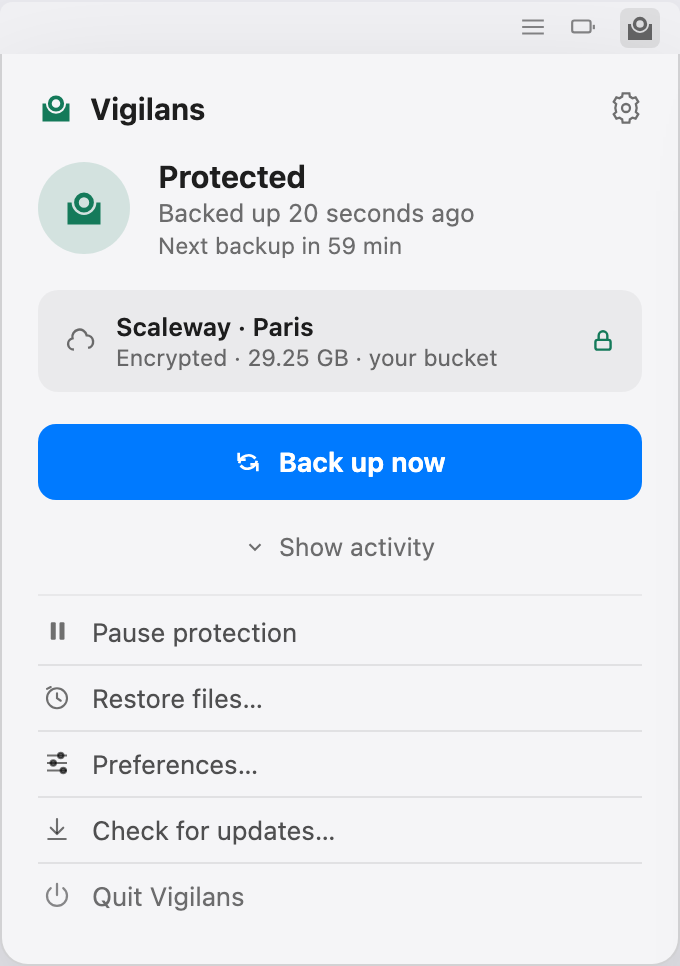
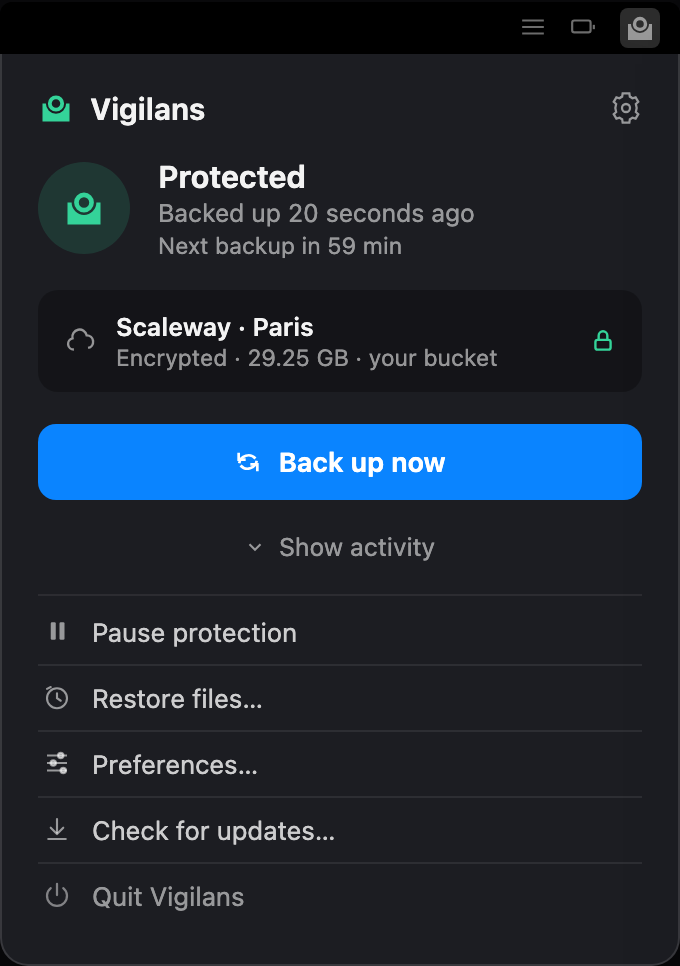
The whole product is this one panel. No window, no dock icon — a glyph in the menu bar that turns while it writes and is otherwise still.
Scaleway · Paris, Amsterdam or Warsaw
What Vigilans does
Everything at a glance
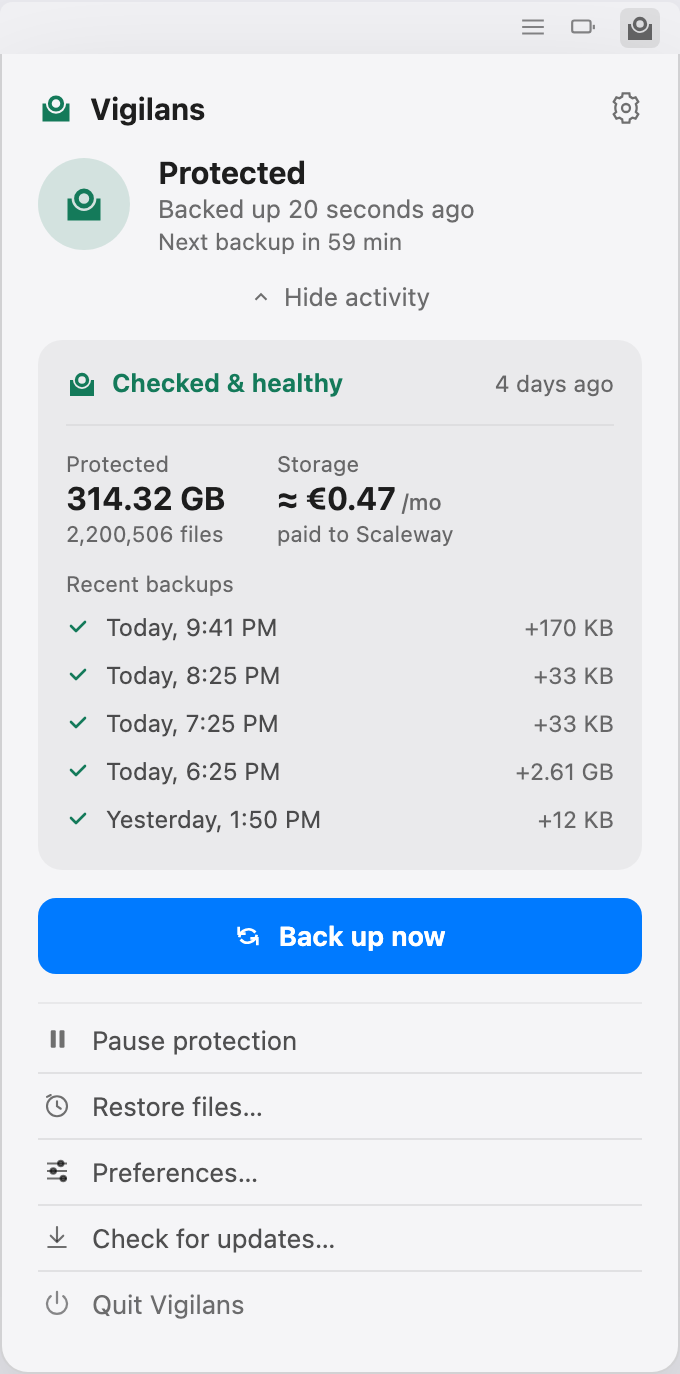
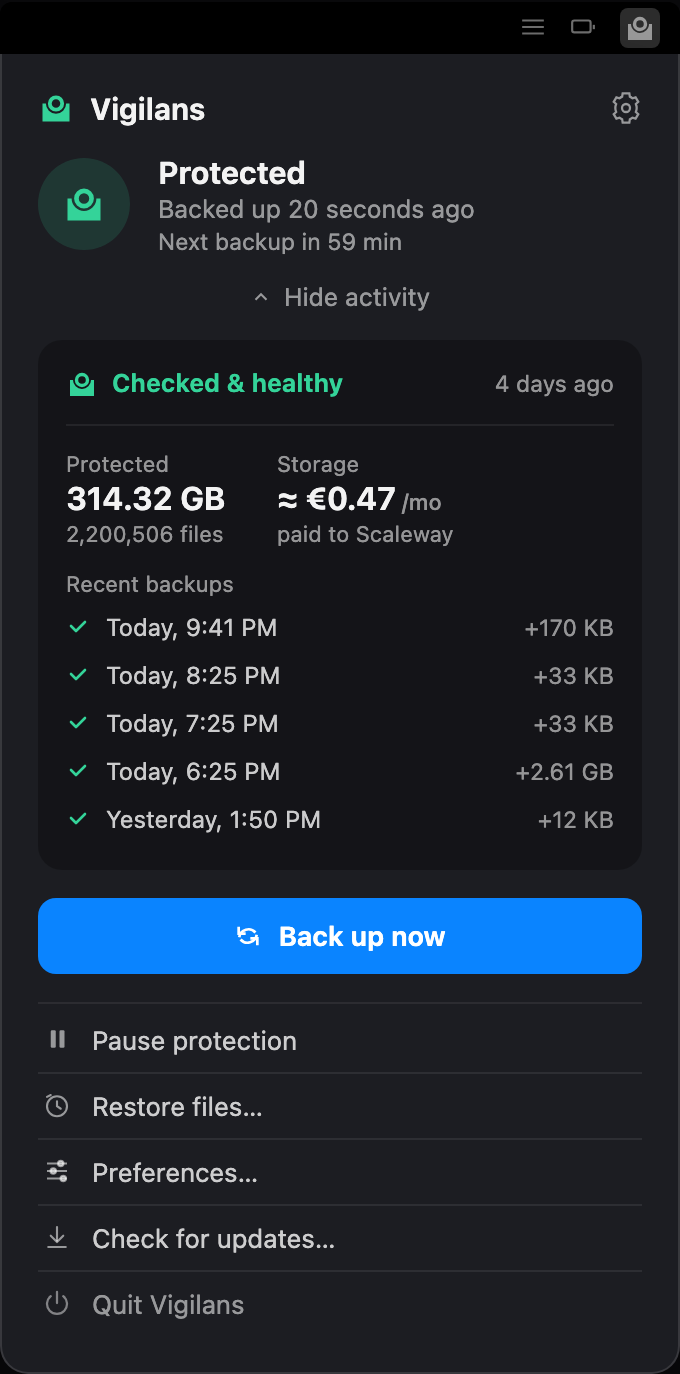
One click on the menu bar icon shows what matters: how much is protected, your recent backups, the result of the latest integrity check — and what the storage actually costs you per month, paid directly to Scaleway.
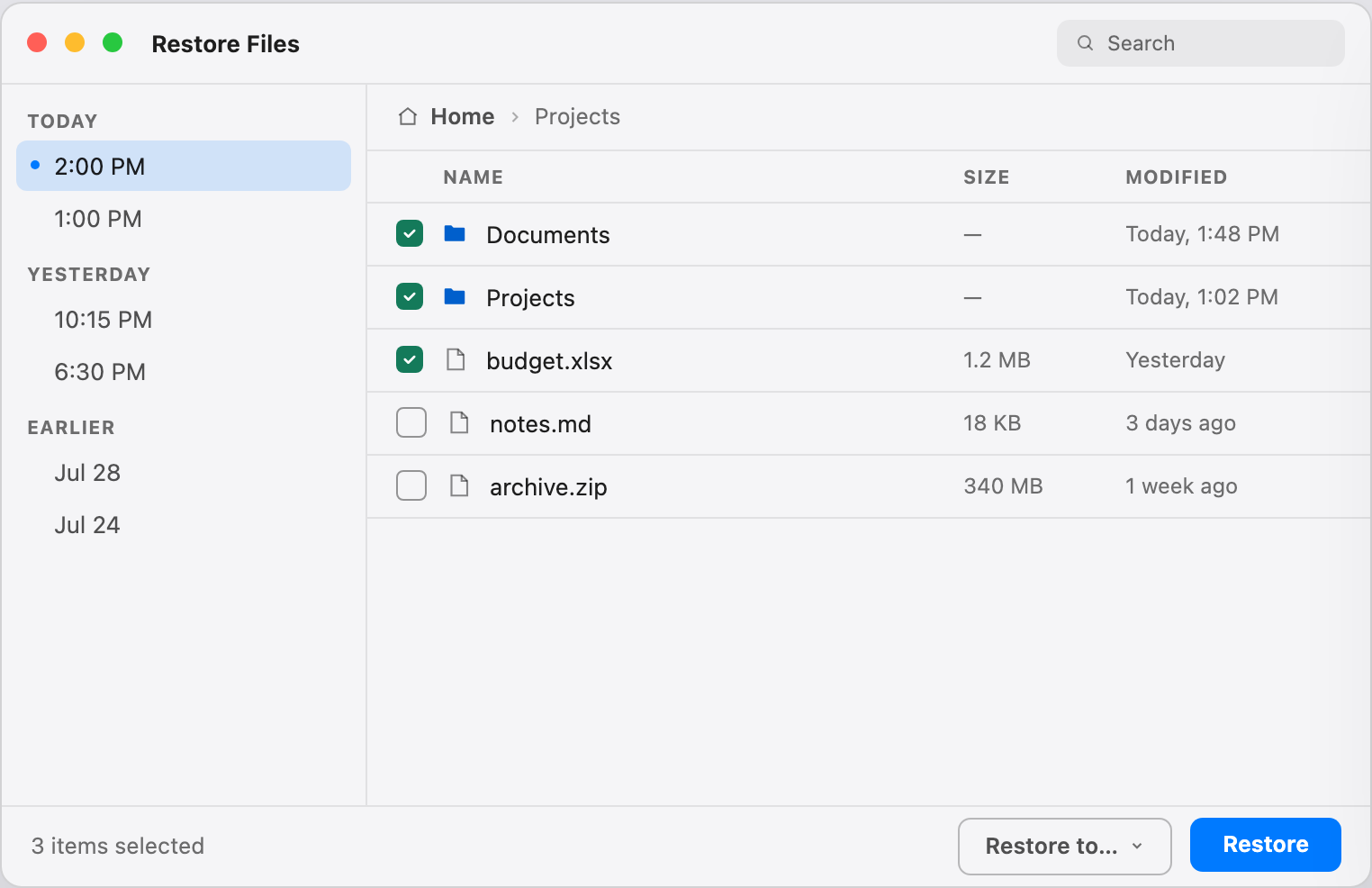
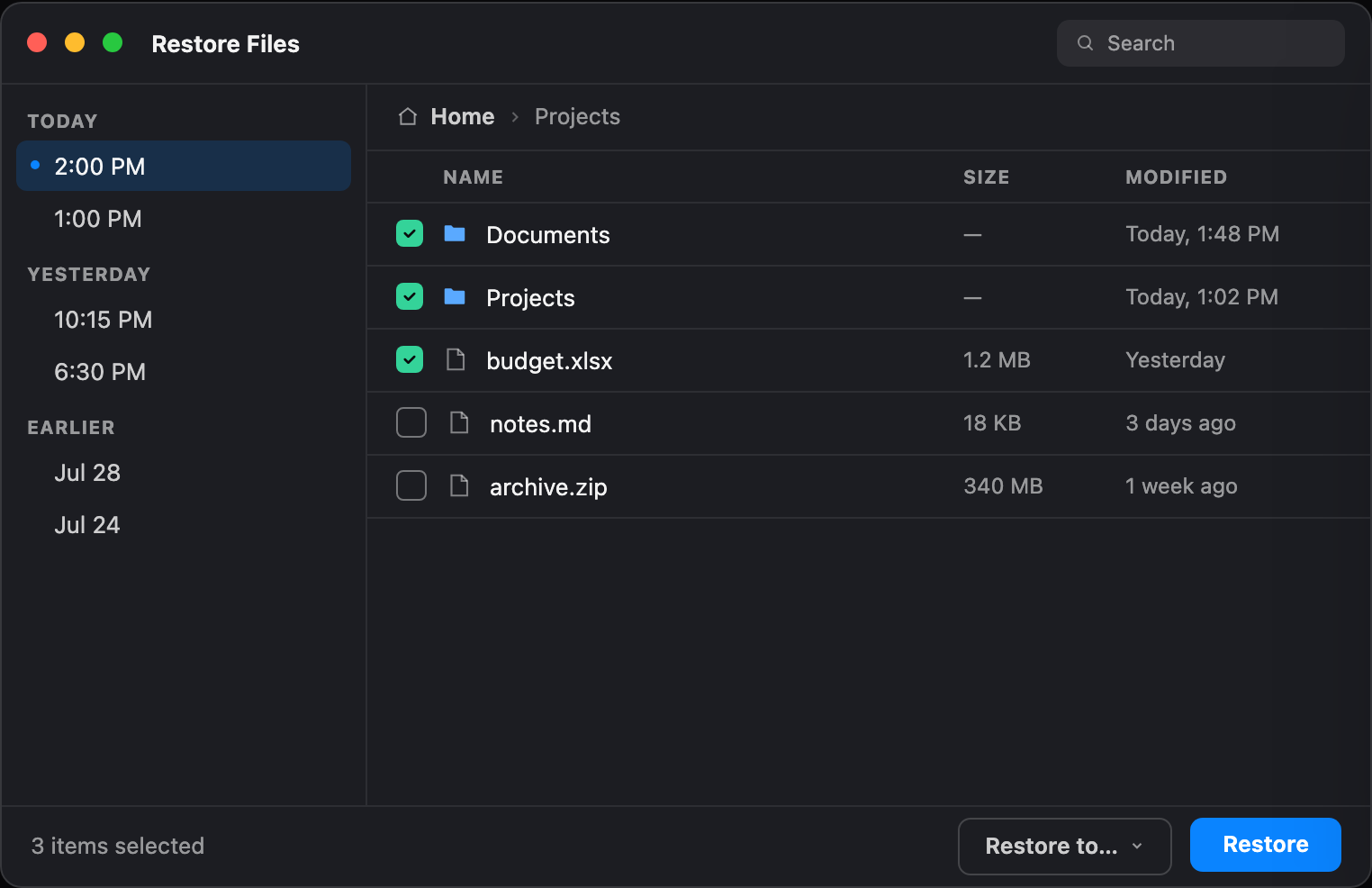
Going back in time is a file browser
Every backup is a snapshot you can open like a folder. Pick a point in time in the sidebar, tick the files or folders you need, and restore them to their original place or anywhere else.
How it works
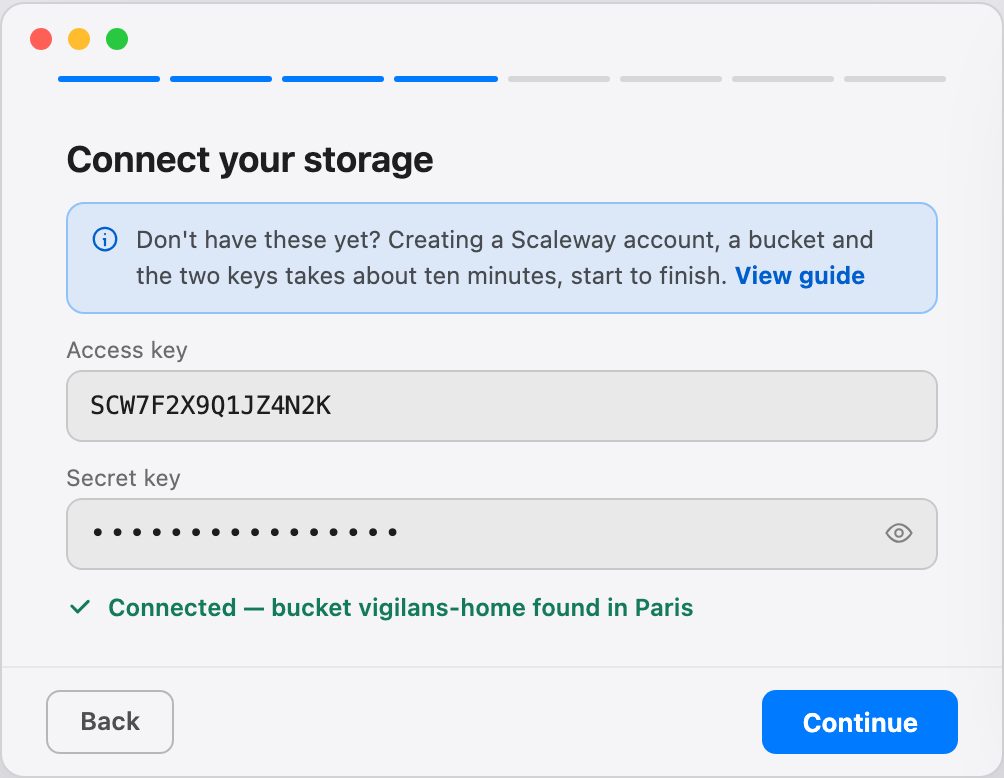
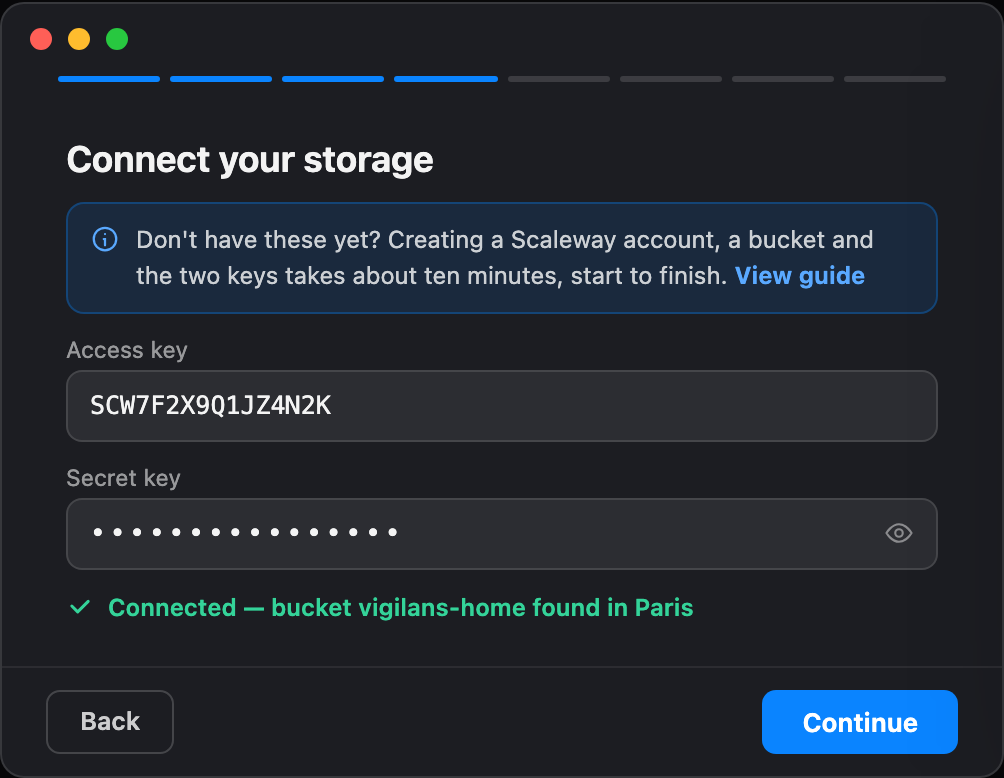
Connect your bucket
Point Vigilans at your own Scaleway object storage bucket — the setup guide walks you through creating one, from account to keys, in about ten minutes. Your encryption password stays in your Mac’s Keychain and never leaves your machine.
Choose what to back up
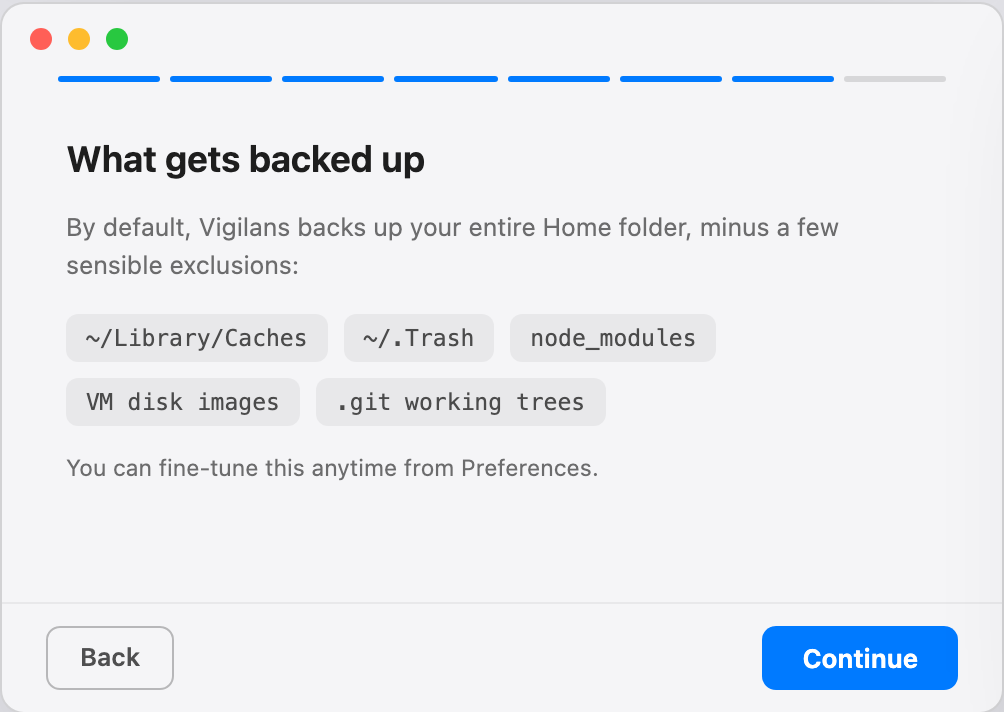
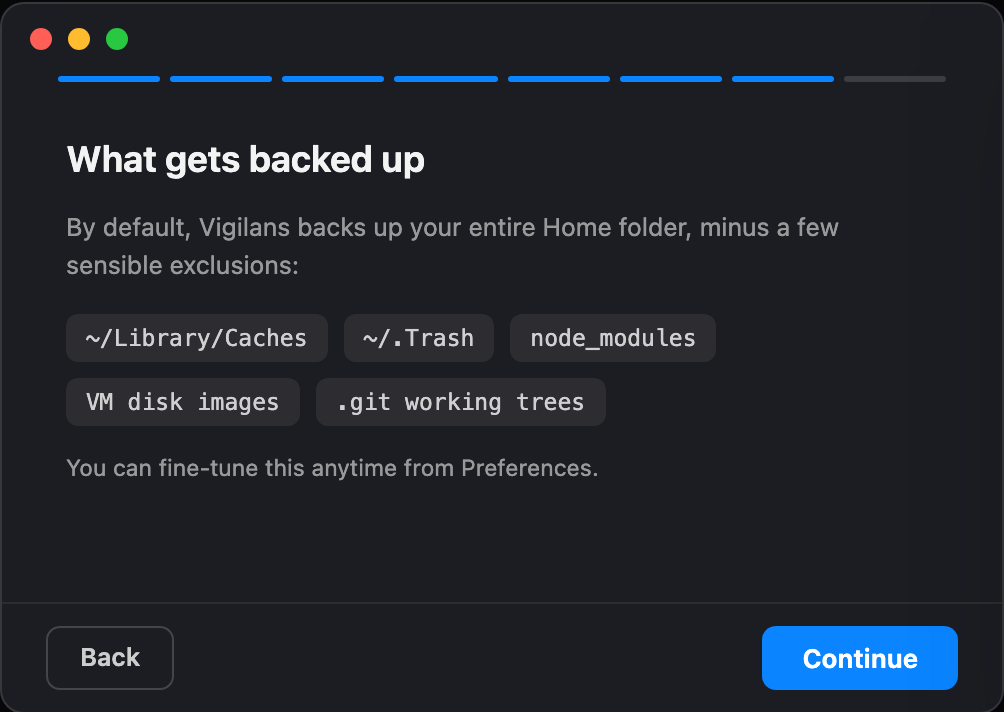
By default Vigilans protects your entire home folder minus the noise — caches, trash, node_modules, VM images. Fine-tune the scope anytime from Preferences.
Protected
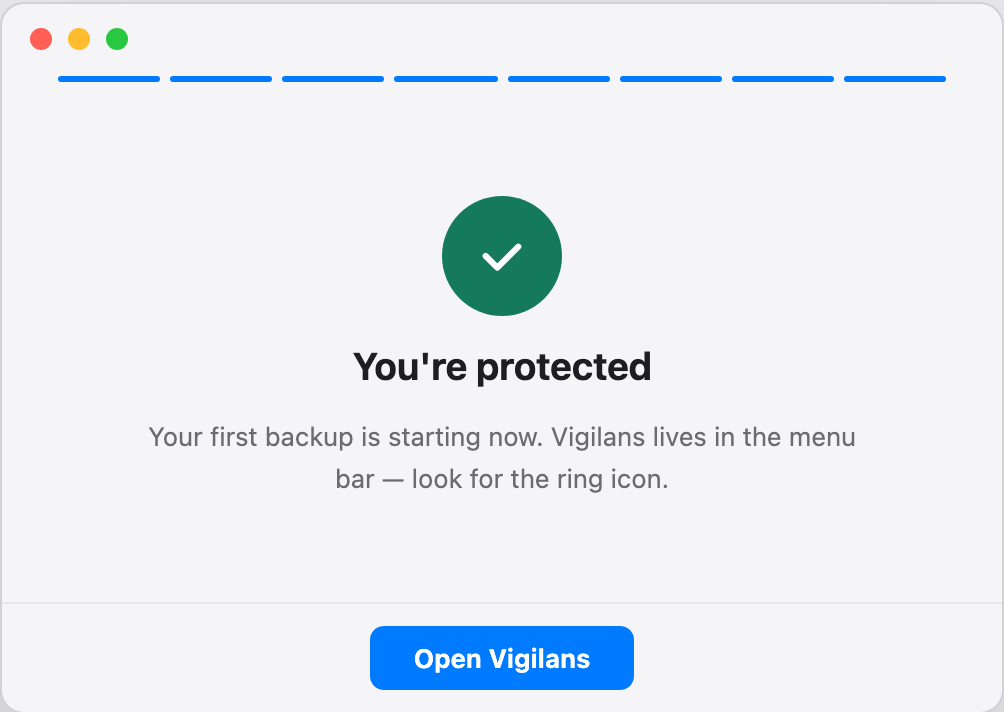
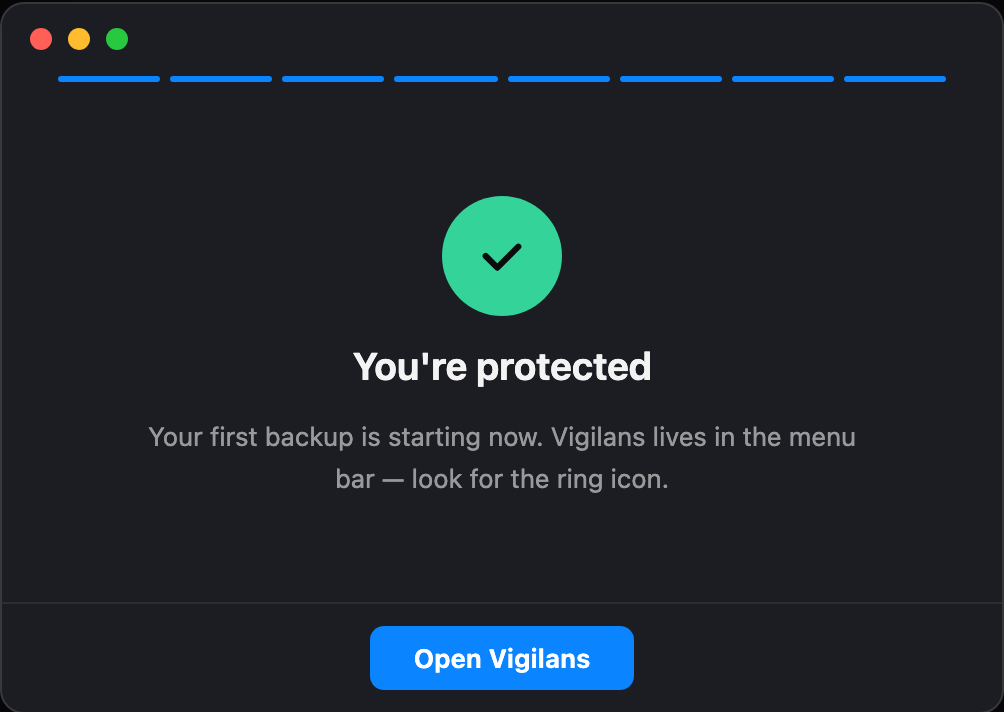
That’s it. Your first backup starts right away, and from then on Vigilans backs up on schedule, checks integrity, and shows its status in the menu bar. You only hear from it when something needs you.
Frequently asked questions
Changelog
- Encrypted backups to your own Scaleway bucket, powered by restic
- Menu bar app with a five-minute guided setup
- Restore window: browse snapshots, restore files or folders
- Battery-aware scheduling with a background agent
- Automatic backup integrity checks
- English and German localization
- Automatic app updates via Sparkle